
- Inventory Import:
This is for importing the exact quantity you have in stock for a product. If you are doing a yearly inventory count or auditing your stock, this is the import you want to use. This will set the product stock quantity in KORONA to the exact number you import, not add or subtract from it.- Inventory or Stock Adjustment Import Template: Inventory-Import-Template.xlsx
- Stock Adjustment Import:
This is to add or subtract from the current stock quantity in KORONA. This import does not deal with supplier (vendor) information or costs. This is useful if you don’t track costs in KORONA and want to easily add to your current stock counts.- Use the same template as above.
- Stock Receipt Import:
This is for importing “invoices” from your product purchases from suppliers (vendors). It requires the supplier/vendor name and cost for the products.- Stock Receipt Import Template: Stock-Receipt-Template.xlsx
How To Import
- Go to Settings > Data Exchange
- Select “Import” for either CSV or Excel
Note: If you do not see the Excel option, type “excel” in the bar at the top and press “Add”
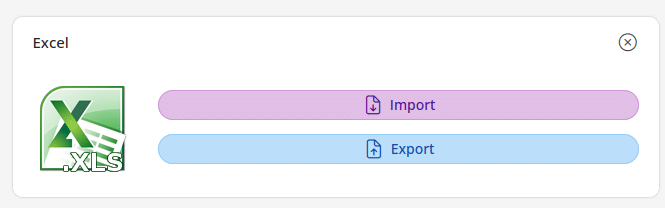
- Leave the selection as “Custom Excel” and press “Confirm”
- Use the bar in the “Excel File” selector to either drag your file into it, or click the cloud icon button to upload it from File Explorer. Then press “Upload” at the top
The “Excel Format” file is optional and does not apply to this guide
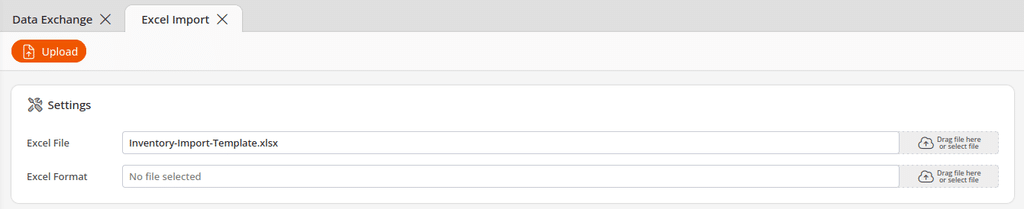
- Check the box for “Skip first line” — This will make it ignore your column headers from the template file
- The next steps depend on what type of import you are doing — only one at a time is necessary:
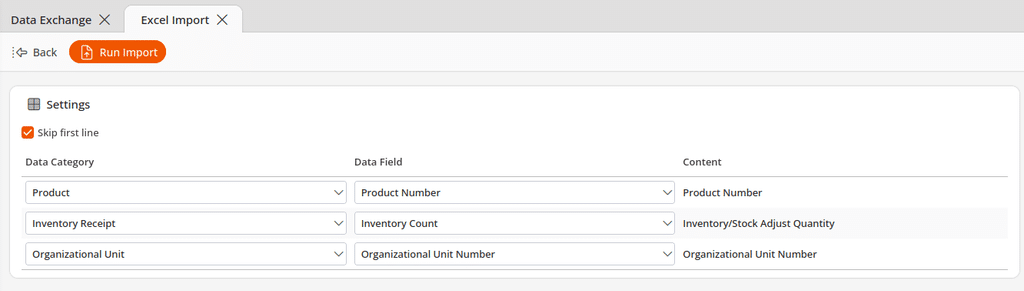
- 6a) Inventory Import — Setup the “Data Category” and “Data Field” like so:
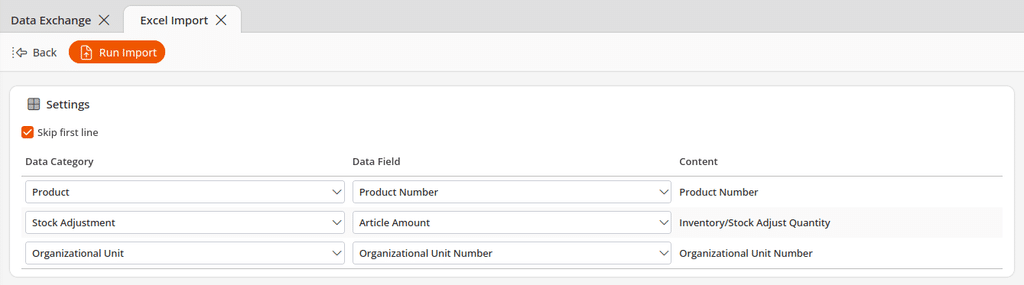
- 6b) Stock Adjustment Import — Setup the “Data Category” and “Data Field” like so:
- 6c) Stock Receipt Import — Setup the “Data Category” and “Data Field” like so:
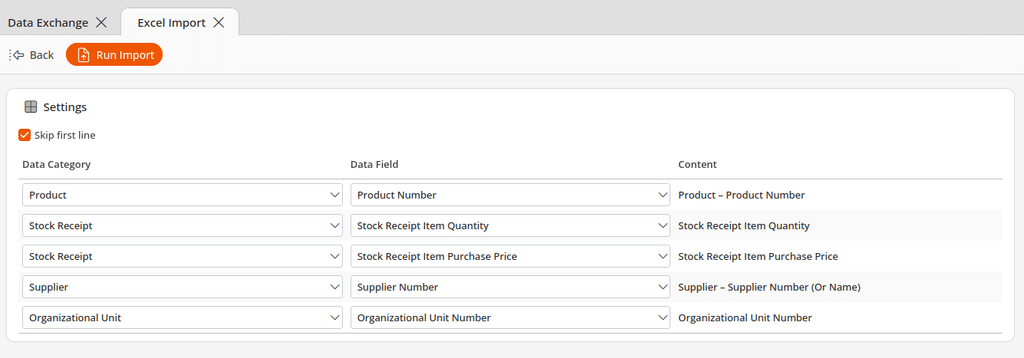
- Press “Run Import”
Once the import is finished, it will bring you to a results page. If there were any errors, they will be listed at the top. You can double-click on any imported entry to go to it directly, and you can safely exit the tab.
Booking Your Imports
Once the import is complete, you still have to book the Inventory/Adjustment/Stock Receipt accordingly.
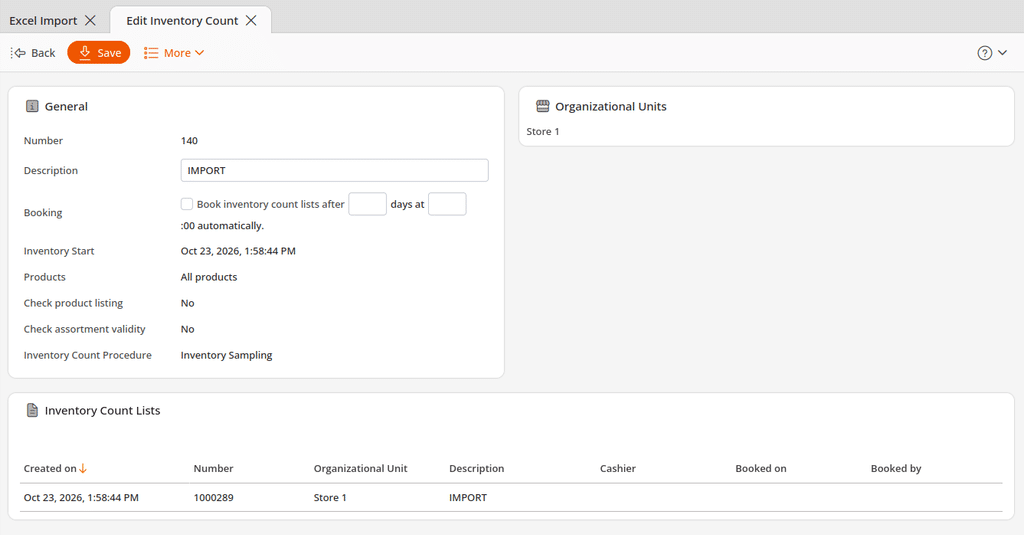
- Inventory — Go to Inventory > Inventories. Inventories that are imported will have the description “IMPORT”. Edit the inventory, open the inventory count list (at the bottom), and then book it.

- Stock adjustment — Go to Inventory > Stock Adjustments (if you do not see this option, edit menu entries). Stock Adjustments that are imported will have a reason of “Created by a CSV or Excel Import”. Edit the Stock Adjustment and then book it.

- Stock Receipt — Go to Inventory > Stock Receipts. Stock Receipts will not have a custom description for imports, but the most recent will show up at the top of the list by default. Edit the Stock Receipt and then book it.

Once you have booked your imports, you are finished. The stock will be changed in your Warehouse accordingly. It may take a few minutes for the Warehouse to update if there were many product changes.