Email Templates let you set up premade emails for sending invoices, delivery notes, quotes, rentals, and stock orders as PDFs. This keeps the emails you send to customers and suppliers consistent and quick to send. Templates are assigned per Organizational Unit, so each store can use its own design.
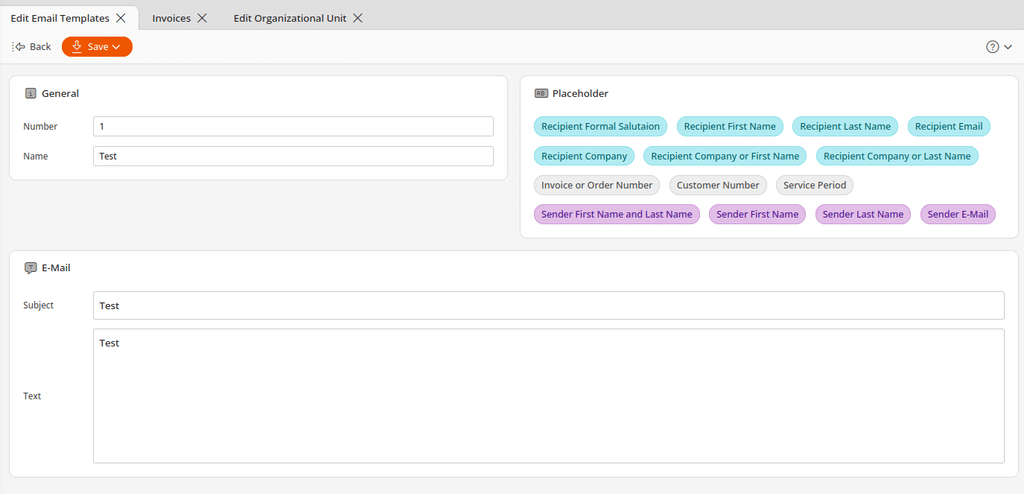
Creating an Email Template
- Go to “Settings > Email Templates”
- Press “+New” at the top of the screen
- Give the template a name so it’s easy to find later
- Enter the subject line and the body text of the email
- Press “Save”
Repeat these steps for each type of document you want to email out. You can make as many templates as you need, for example, one invoice template for each store.
Assigning Templates to an Organizational Unit
Once your templates are created, you need to assign them to a store before they can be used.
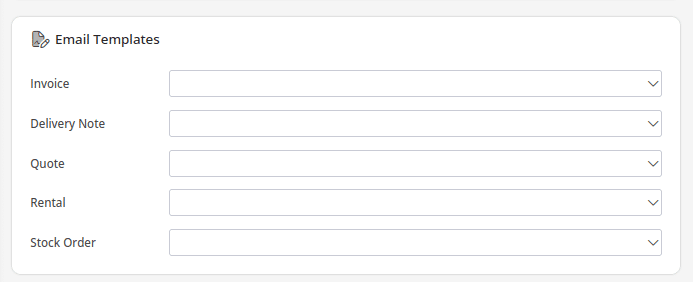
- Go to “Settings > Organizational Units”
- Edit the Organizational Unit (store) you want to set up
- Find the email template settings and choose a template for each document type: invoices, delivery notes, quotes, rentals, and stock orders
- Press “Save”
Repeat for each store. Because templates are assigned per Organizational Unit, each location can send out emails with its own design and wording.
Note
If a document type does not have a template assigned, the email will be blank, and you will need to type your own email text each time you send it.
Changing Your Email Alias
The sender name customers see when they receive your emails is your email alias. To change it, go to “User Menu > My Company Data” and update the email alias field. Then press “Save”.