
Sometimes the credit card terminal doesn’t send the transaction result back to the POS. When this happens, the POS stays on the payment page and an error popup appears. This page explains how to check whether the transaction went through and how to close out the sale on both PAX and Dejavoo terminals.
PAX Terminals
PAX terminals automatically check for the transaction when they lose their connection. You don’t need to set anything up.
- If the transaction is found, the POS closes out the receipt like normal.
- If the transaction isn’t found, the POS shows a “Transaction not found” error. The cashier should press the credit button again to rerun the payment. See Running the Transaction Again below.
Dejavoo Terminals
Dejavoo terminals use a status button on the payment layout to check the last transaction. Because the transaction didn’t close, the receipt stays open so the cashier can press the button.
Set Up the Dejavoo Status Payment Method
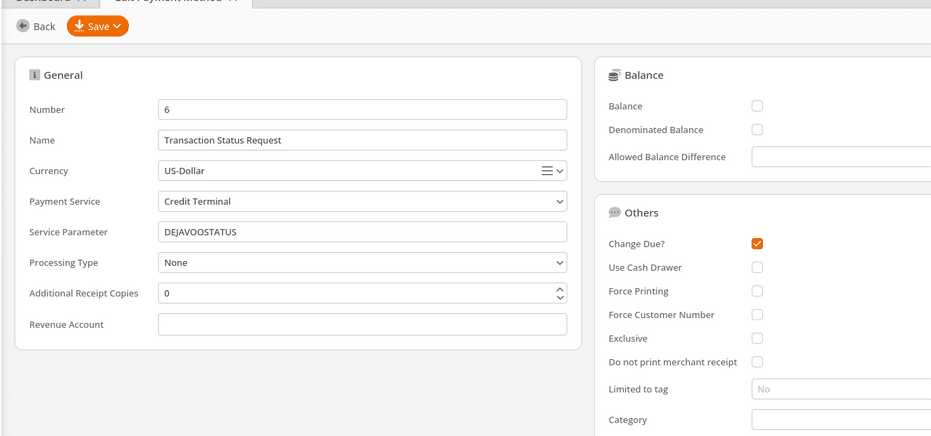
- Go to “Settings > Payment Methods” and create a new payment method.
- Name it something easy to recognize, such as “Dejavoo Status”.
- Set “Payment Service” to “Credit Terminal”.
- Enter “DEJAVOOSTATUS” in the “Service Parameter” field.
- Save. Follow the image below for the full setup.
Add the Button to the Payment Layout
- Go to “Settings > Button Configurations” and double-click your button configuration. Most stores use the “Default Layout Configuration”.
- Open the payment layout and click the orange “Edit” button.
- Click an empty slot and enter the button name.
- Click “Add Function”, select “Payment Method”, and choose “Dejavoo Status”.
- Save. At the POS, run “Retrieve Master Data” to see the new button.
For more help, see Create POS Buttons.
Using the Button
After the error pop-up, the cashier presses “Dejavoo Status” on the payment page.
- If the transaction is found, the POS closes out the receipt like normal.
- If the transaction isn’t found, the cashier should run the credit payment again. See Running the Transaction Again below.
Running the Transaction Again
If the transaction check doesn’t find the payment, the cashier can run the credit payment again. Both PAX and Dejavoo terminals have duplicate protection:
- No duplicate error: the first transaction didn’t go through. The new transaction completes like normal.
- Duplicate error popup: the first transaction did go through. Don’t charge the card again. Close out the sale with the Offline Credit payment method instead.
Offline Credit
Offline Credit is a payment method that closes out a receipt without sending anything to the terminal. Use it only when the terminal reports a duplicate, so the customer isn’t charged twice.
Set Up the Offline Credit Payment Method
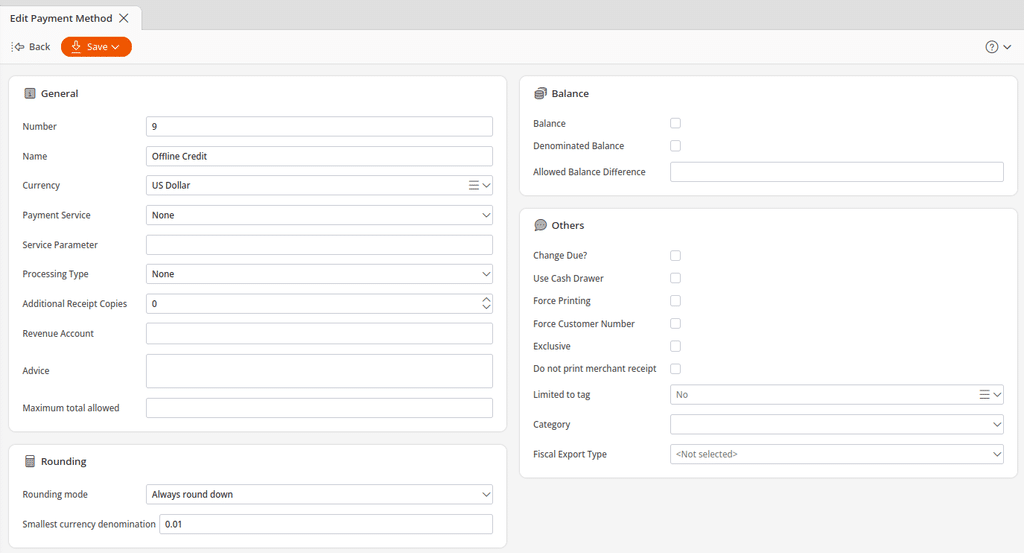
- Go to “Settings > Payment Methods” and create a new payment method.
- Give it a clear name, such as “Offline Credit”.
- Set “Payment Service” to “None”. Leave all other settings at their defaults.
- Save. Follow the image below for the full setup.
- Add it to the payment layout the same way as the Dejavoo Status button above.
Reviewing Offline Credit Receipts
Managers should review receipts closed with Offline Credit to confirm the payment went through.
- Go to “Sales > Receipts” and filter by the Offline Credit payment method.
- Compare each receipt with your processor’s portal or batch report to confirm the charge is there.
What to Do If Frequent Connection Issues Occur
If connection errors happen often, the cause is usually your store’s network. The steps below can help.
Set an IP Reservation (PAX Terminals)
PAX terminals often lose connection because their IP address changes. The IP address is like the terminal’s street address: the POS sends transaction requests to it. If the address changes, the POS can’t reach the terminal until it’s updated with the new one.
To fix this, set up an IP reservation (also called a local static IP) so the terminal always keeps the same address. You do this in your router’s settings, either in a web browser or in the router’s mobile app, depending on the model.
- If you have an IT team or managed service provider (MSP): Ask them to set up a DHCP reservation for the PAX terminal.
- If you manage the router yourself: Log in to the router’s admin portal and look for “DHCP Reservation”, “IP Reservation”, or “Static IP”.
- If you need help from your internet provider (ISP): Call them and ask for help setting up a local DHCP reservation for a device on your internal network.
Note
You don’t need a public (external) static IP. If your ISP offers one for a monthly fee, tell them you only need a free local IP reservation on your internal router.
Use a Dedicated Network Switch (PAX and Dejavoo Terminals)
Payment terminals can disconnect when they share the network with other devices, such as guest Wi-Fi, smart TVs, audio systems, or security cameras. Too much traffic slows the network down, especially during busy hours.
Putting your POS and payment terminals on their own network switch:
- Prevents dropouts: terminals stay connected during busy hours.
- Speeds up processing: payment requests aren’t slowed down by other traffic.
To set this up:
- Get an unmanaged gigabit switch. A standard 5-port or 8-port switch from a brand like NETGEAR, TP-Link, or Cisco Business is low cost and works well.
- Plug only your POS terminals, payment terminals, and the connection from your router into the new switch.
- Keep other devices, such as guest networks, cameras, and personal devices, on your main router or on a separate switch.
If you have an IT technician or MSP, pass this recommendation along to them.