Sometimes you will want a product to contribute/activate a quantity based discount, without that product actually receiving that discount itself. An example of this is selling wine that is already on sale, and so you do not want it to be discounted further, but you still want it to contribute to your case discount. This guide will help you adjust your existing case discount to achieve this.
Product Setup
The first step is to set up the products with the proper tags.
The way this method will work is that there will be a tag for products that activate the discount, and a second tag for products that receive the discount. The products on sale will only have the activate tag, and the products that normally activate and get the discount will have both tags.
First, we will add the tag for all the normal products that activate and receive the discount.
- Go to Inventory > Products
- Apply a filter, such as a commodity group or using an existing discount tag, so that you can edit the products all at once
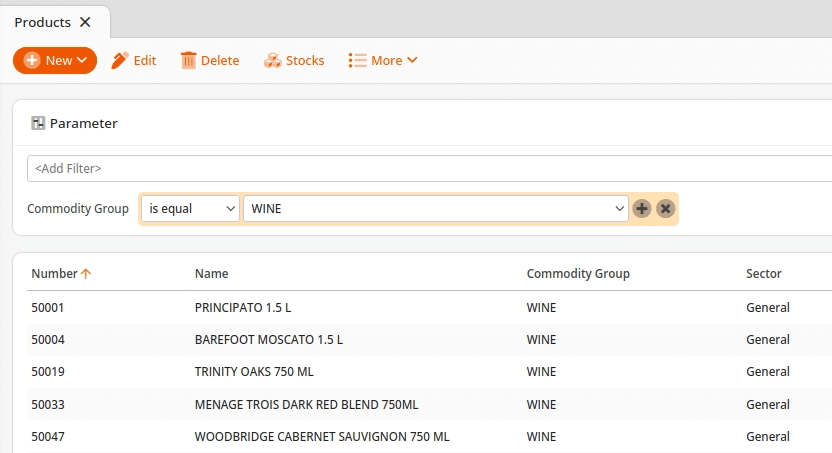
- Go to Edit
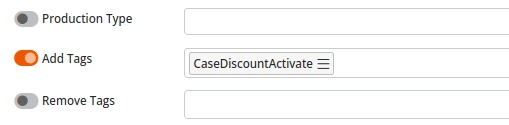
- Add both tags to the Tag section. If they don’t exist already, you can type directly into the tag section and then press enter to create them
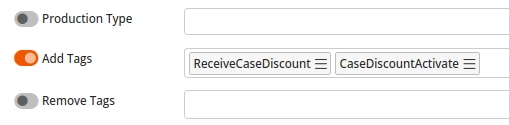
- Press save at the top.
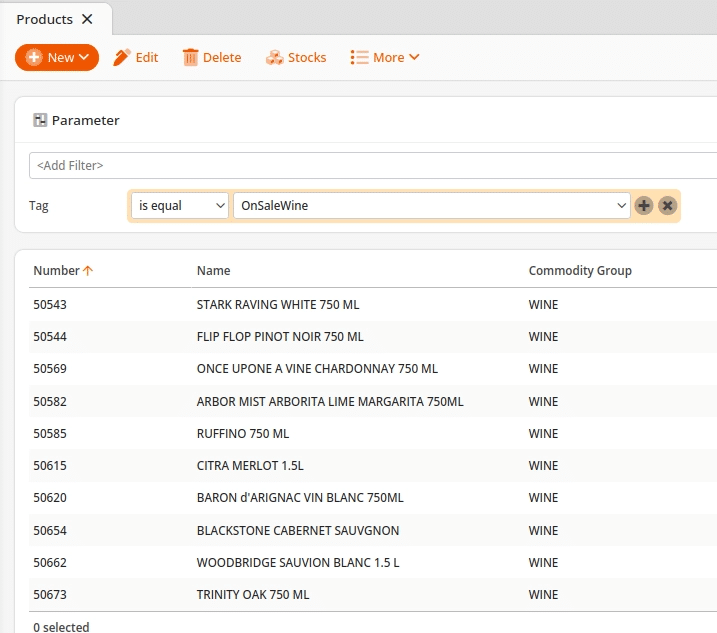
Next, you will follow the same process, but only for the products that will only activate the discount without actually receiving it. Make sure to only add the “Case Discount Activate” tag to these products.
Promotion Setup
Now you will modify your existing promotion to work with the two tags. If you do not already have a promotion set up, you can use the example below or view our manual page on setting up a promotion.
Note
The “Graduated Discount” does not work with this method.
If you have multiple quantity-based discounts that need this method, you will need to create multiple promotions and mark them as exclusive. Contact KORONA Support if you need help with this.
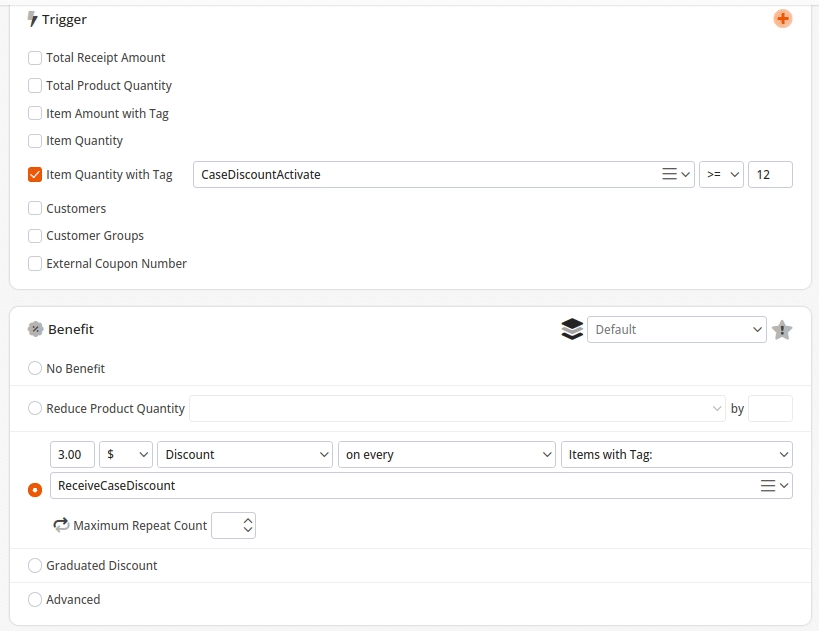
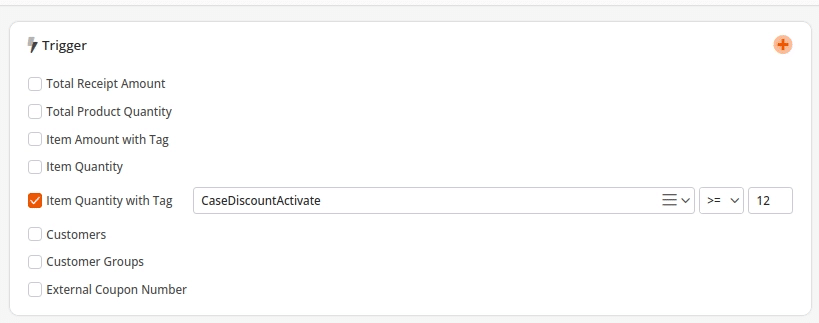
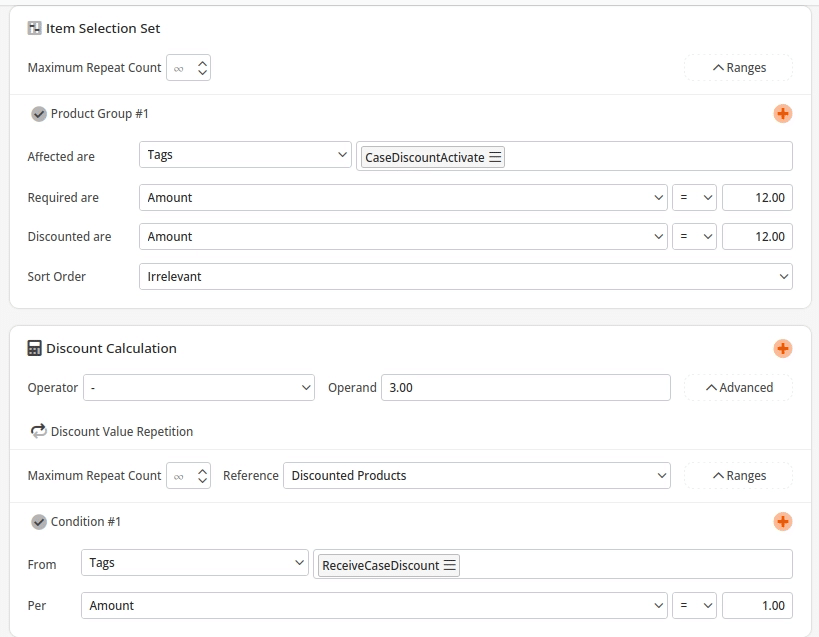
Edit your promotion so that the “Trigger” is “Item Quantity With Tag” and the tag selected is your “Case Discount Activate” tag. Then, for the benefit section, change it so that it uses your “Receive Case Discount” tag.
Below are some examples of what that might look like.
- Regular promotion that discounts every bottle by $3 after 12 or more are added to the transaction:
- Advanced promotion that discounts every bottle by $3 after 12 or more are added to the transaction:
Save your promotion after changing it, then retrieve master data on the POS and test it out!