
Creating an Open Product

Open products are used if you need to quickly sell either a new product or a product you don’t want to enter into KORONA Studio.
Go to the product creation screen by navigating Inventory > Products. Click the new button at the top of the screen.
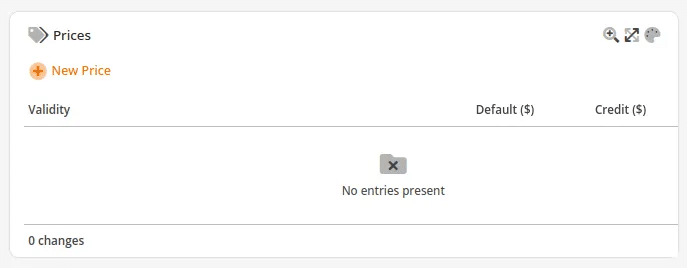
Create your product by giving a name, commodity group, assortment, and sector. Leave the pricing fields blank.
Set the product to “Price changeable” and save it.
Adding a Button for Open Product
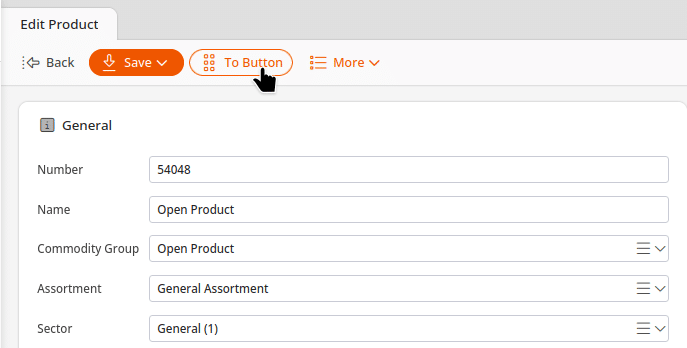
After the product is created, click on “To Button” at the top (to the right of the save button).
For Step 1 choose “Quick Keys”. Follow step 2 and step 3, where you will drag the button to its desired location.
Once done with all these steps, Retrieve Master Data on the POS.
If you want to associate new product codes at the POS, you can follow the steps on our Product Code Recommendations manual page.