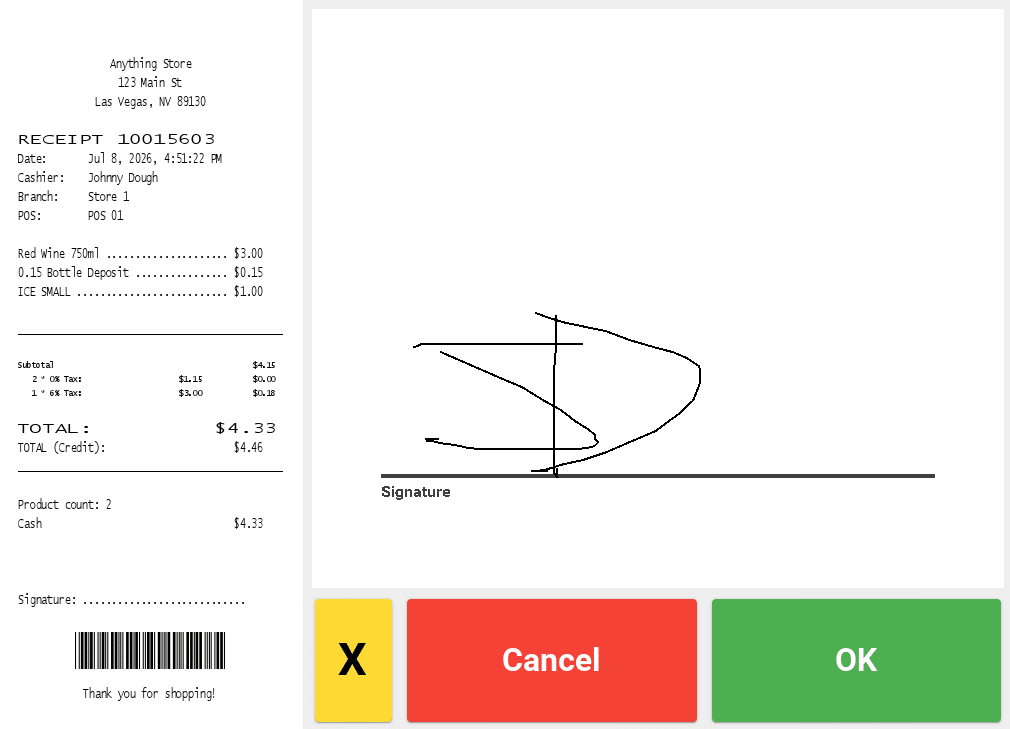
Selecting this option and activating it for the point of sale requires the customer to enter a signature on the customer display before processing a transaction.
E-Signatures or Digital Signatures
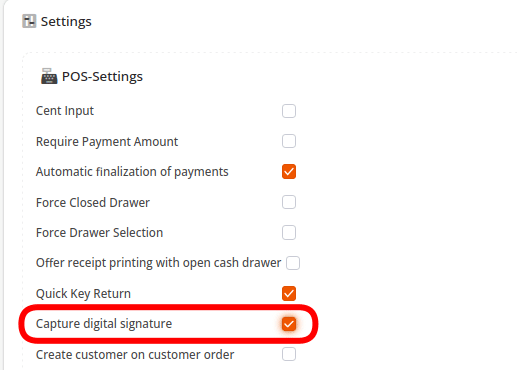
To enable, navigate to Settings > POS Profiles. Under the field POS Settings, there is a Capture Digital Signature option. Select the option and Save.
If you just enable this option, it will only require a signature on Voids or Returns. If you would like to enable it for specific transactions or specific payment methods (like Credit), read the next section.
Important Note
Whenever a change is made to the POS Profile, you must retrieve master data.
Adding Signature Buttons
Next, you will need to create buttons in order to activate and deactivate the feature on the POS. Go to Settings > Button Configurations and Edit your preferred layout. You can filter the buttons through Type > Function. There are three available functions to use for this setup:
- Activate Mandatory Signature On Receipt (enables the signature to be required)
- Deactivate Mandatory Signature On Receipt (disables the signature requirement)
- Switch Mandatory Signature On Receipt (toggles between it being enabled and disabled)
If you want to require a signature only on certain transactions, you can make a button for “Activate Mandatory Signature on Receipt”. This allows the cashier to choose when they want to capture the signature.
If you want to capture a signature on all transactions, you can add the “Activate Mandatory Signature on Receipt” function to your total button.
If you only want to capture signatures on Credit transactions, for example, then you can add the “Activate Mandatory Signature on Receipt” to your credit button like so:
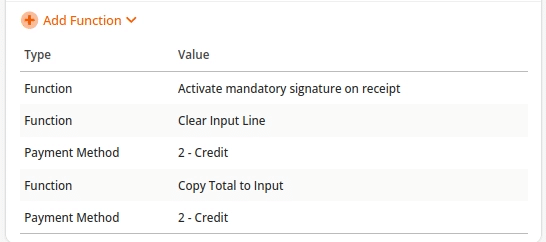
Once the buttons have been added, Save your configuration. Your point of sale is now ready to capture signatures.
Important Note
Using a touchscreen customer display is preferred. However, customers can also use a mouse plugged into the same terminal to sign.
Signature Display
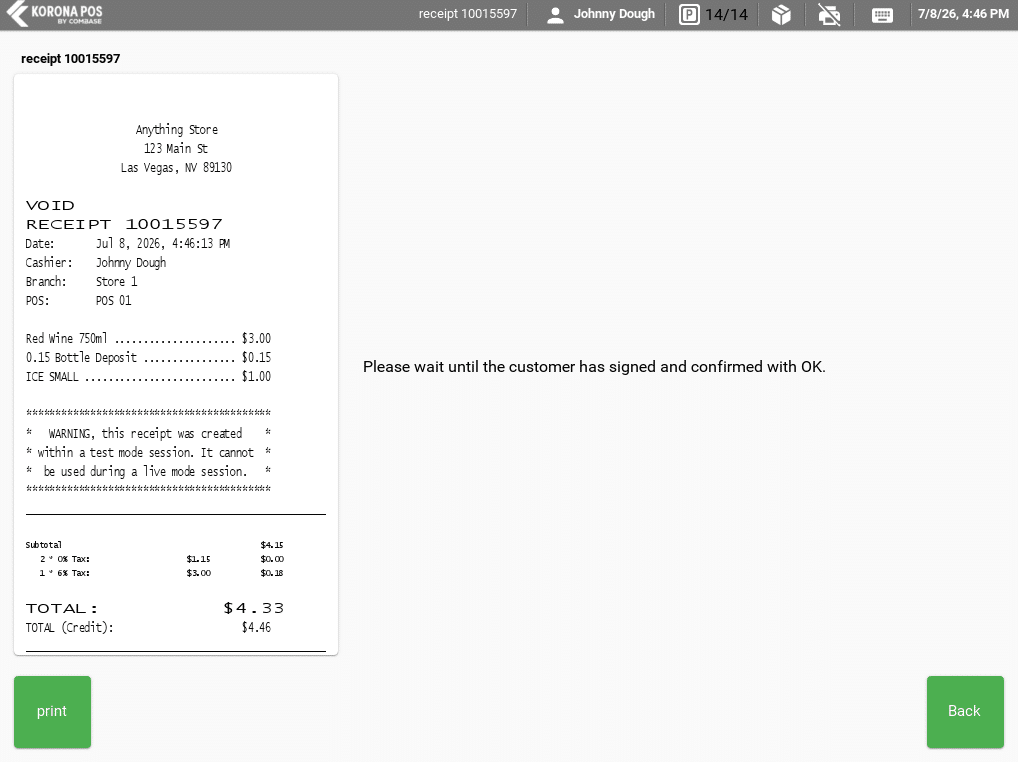
Here is how the prompt will look on the cashier-facing side:
Here is how the prompt will look on the customer-facing side: