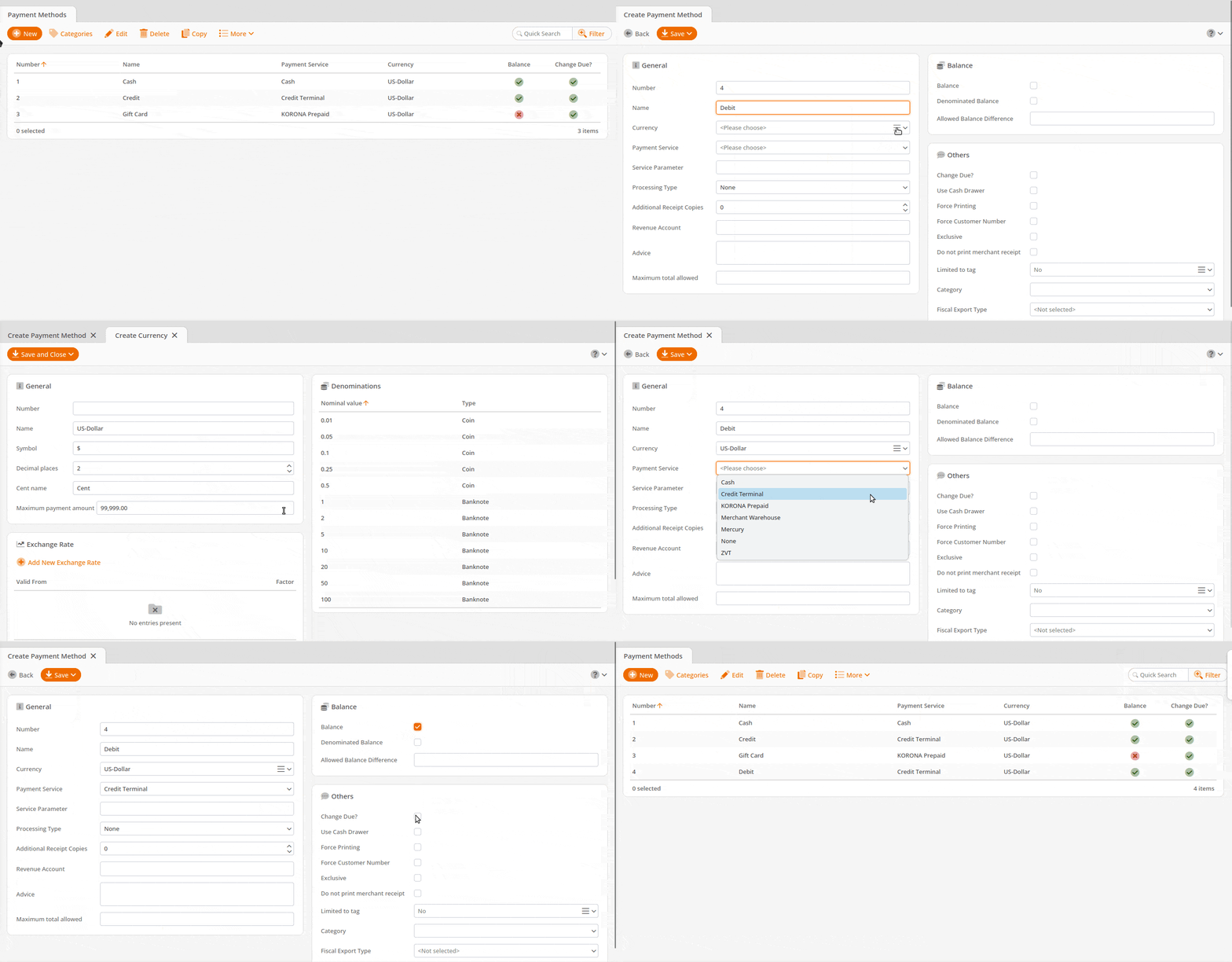
This page will help you set up your Dejavoo Credit Terminal. Before getting started, you must ensure that the Dejavoo device is boarded on the SPIN network platform and that you have been provided with your specific Dejavoo SPIN Registered and SPIN authKey.
Getting Started
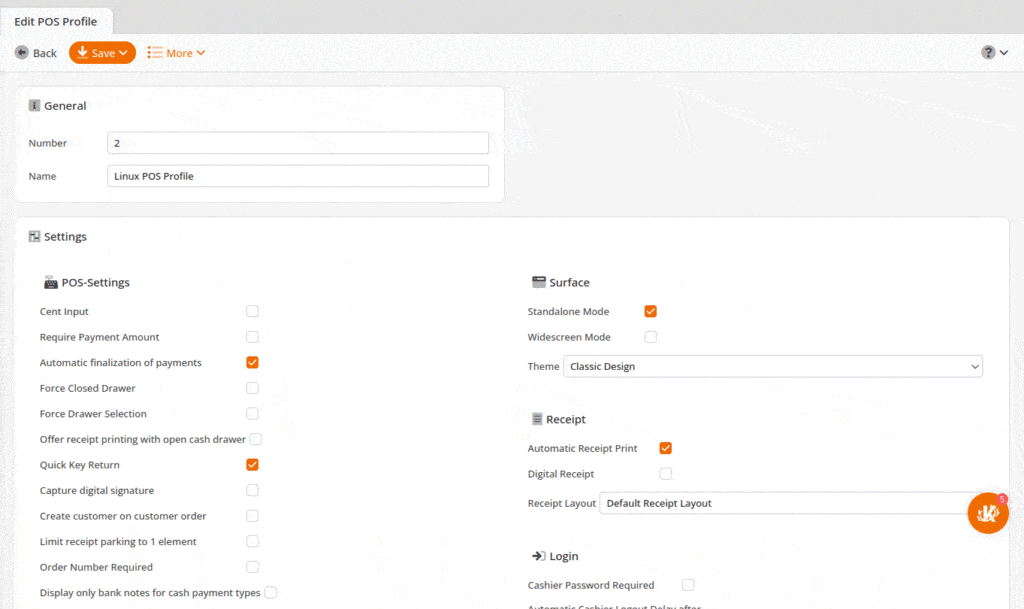
First, create a new device in the checkout profile. To do this, go to Settings-> POS Profiles and edit the POS profile to which you want to add the credit terminal. Scroll down, click Add Device, select Credit Terminal next to Type, and Dejavoo Credit Terminal next to Device, and hit OK.
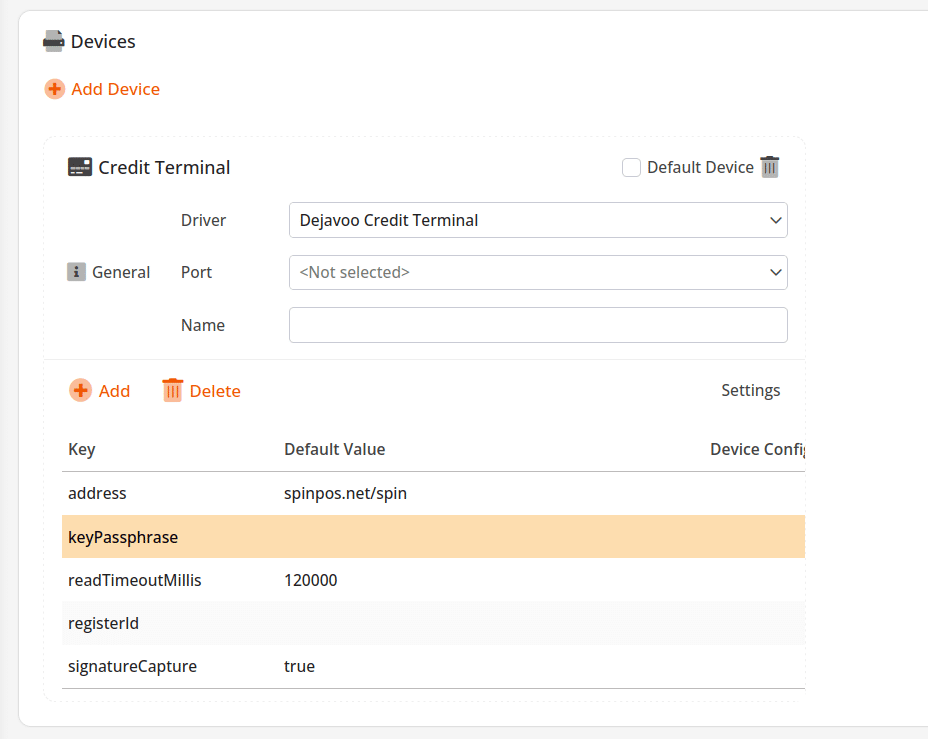
The next step is to add a Port, which for Dejavoo will always be set to Network. You will not have to set up an Initialization Command or a Port Parameter for this device, but you will have to expand Settings and ensure the proper values are added there.
Configuring Device Settings for Dejavoo Terminals
Hit the “Settings” option at the bottom of this device window and ensure all required parameters are set up correctly.
Most of this should be pre-filled, but you may have to add information manually in rare situations. You can add lines to the settings area by pressing the +Add button next to settings.
The following key(s) must be set up for a Dejavoo Connection:
- address: The address will always have a default value of spinpos.net/spin
- keyPassphrase: The keyPassphrase will refer to the device’s SPIn AuthKey credential; provided by your credit terminal manager
- RegisterId: The registerId will refer to the device’s SPIn RegisterID credential; provided by your credit terminal manager
- signatureCapture: SignatureCapture can be true or false, depending on how you would like the device to behave
*Note these are all case sensitive
Last Step
The last step will be to go to Sales>Points of Sale>Double click the POS that the credit terminal will be linked to> Device Configuration Variables. You’ll want to add the djvauth and djvregid as the variable and then copy and paste the actual SPin keys into the correct Value field. Save at the top left and then Retrieve Master Data on the POS in order to test out the terminal.
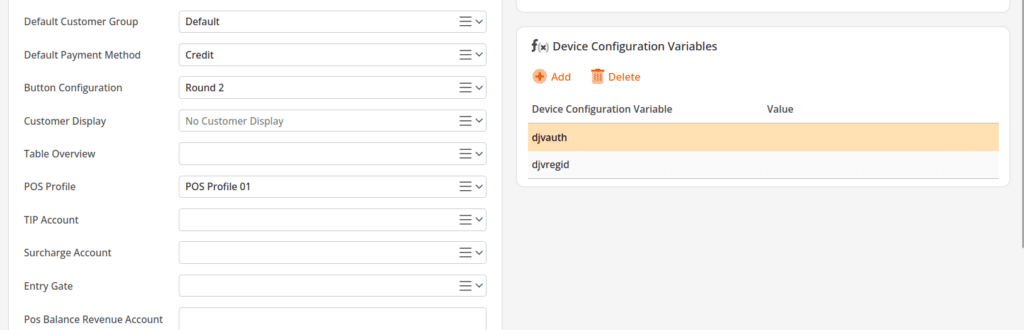
For more info on Device Configuration Variables, please refer to our Adding Device manual page.
Creating the Payment Method
In the last step, you must customize the payment methods. Navigate to Settings > Payment Methods. Edit or add a credit payment method. Make sure the Payment Service is set to Credit Terminal and the Processing Type is set to Default.
Important Note
When making these changes, it is necessary to restart the POS software for the changes to take effect after updating the master data at the checkout terminal.