Need additional troubleshooting?
Talk with the KORONA POS support team.
Please note, KORONA Support will never ask for your password.
Direct Support Line +1 (702) 997-7672
If you do not have access to the KORONA Studio back office, you can also email support@koronapos.com. Please describe your problem in detail and include your login email address.
Please do not include your password. We will never ask you for your password!
Our support team can also remotely access your terminal if you’d like them to. This often makes for a more seamless support experience. It’s completely secure, and any access must be granted by the account owner through the terminal.
General support: Monday through Friday from 6AM to 6 PM PT.
Emergency support: 24/7/365 for anything that prevents clients from making sales or conducting normal business operations.
If you have questions regarding a new POS system, add-ons, or POS hardware, please contact our sales team at +1 (833) 200-0213.
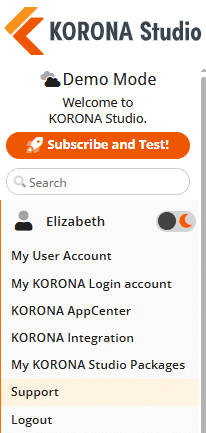
In your KORONA Studio account, you can find the welcome menu in the top left corner.
Selecting “Support” opens the support contact form. This will guide you through a few basic questions to help our team handle your case quickly and efficiently.
If you do not have access to KORONA Studio, you can also email support@koronapos.com. Please describe your problem in detail.
Can’t talk but can text? No problem, we offer Live Chat Support via our Manual Page. Look for the orange chat bubble in the bottom right corner of the page.

Enter your Name, Email, and a short Message and click Submit to get started. A KORONA POS Support Agent will assist you live, on the screen you’re chatting from. This is a great option for when something on the manual page needs further clarification from a KORONA POS Expert.
Sometimes, our support team needs to access your POS terminal to demonstrate procedures, troubleshoot, or resolve issues.
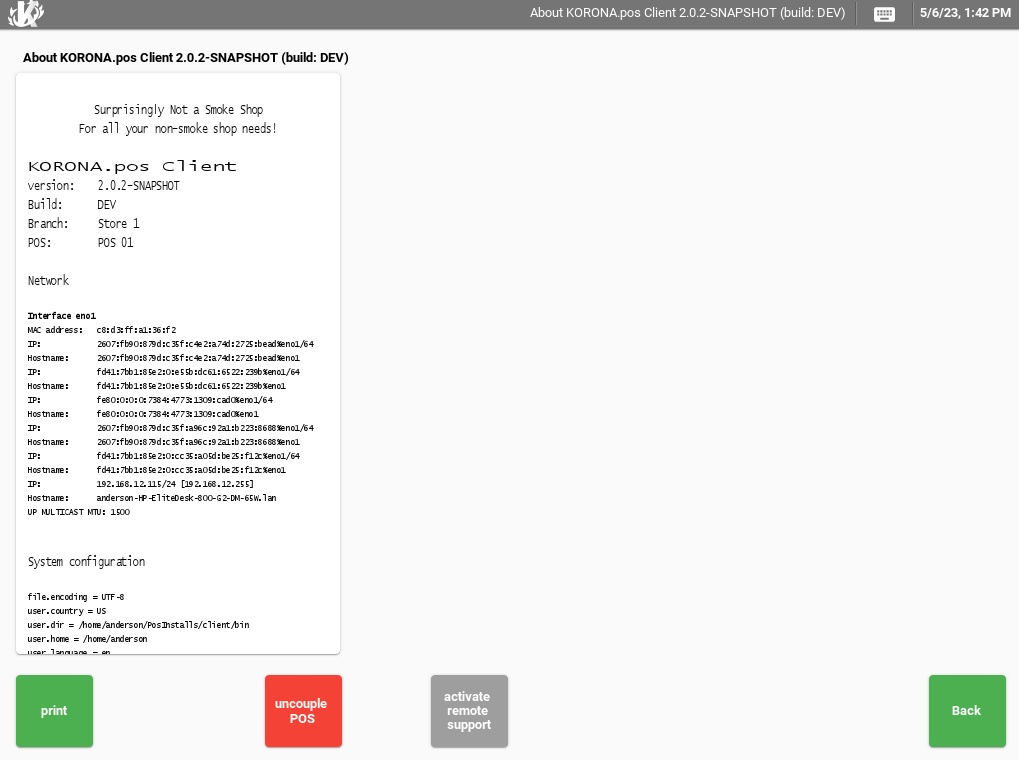
KORONA POS includes a remote support feature that you can activate at any time by tapping or clicking the KORONA logo in the top-left corner of your POS.
This will take you to the KORONA POS info page, which provides general information about your POS.
In the bottom toolbar, you will find a large button in the middle labeled “Activate Remote Support.” By clicking this button, you will activate the remote support function.
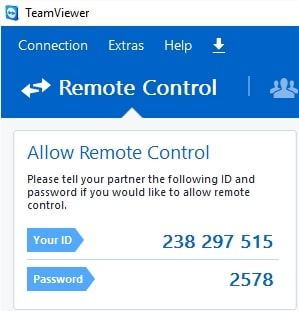
Windows-based POS terminals will open TeamViewer. For our support team to access your POS, you need to provide your partner ID and password.
In the event that your TeaViewer does not provide you with a password, we recommend downloading a new version of TeamViewer by hitting Windows support in the top right-hand corner of our manual page or by clicking below.