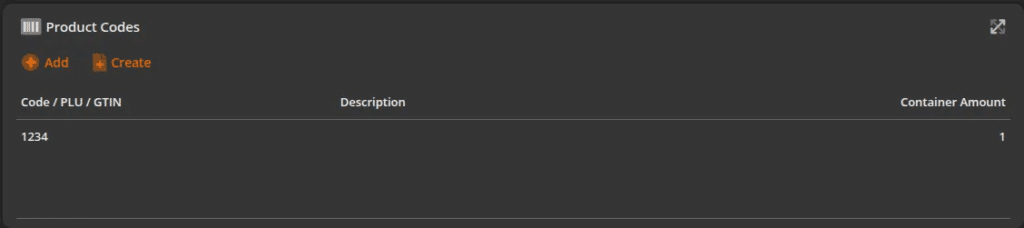
Note: Re-Assigning product codes is much easier now with the latest update to KORONA Studio.
Normally, you would have to remove the code from the product(s) in order to be able to assign new codes to the products.
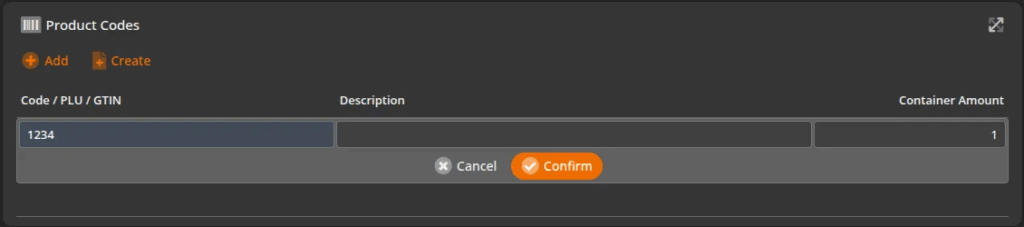
Now, when you go to re-assign a product code from one product code, you can just enter the code as if you were entering a new code. Then click the save button located in the gray bar at the top of the screen.
You will see a dialogue box pop up confirming whether or not you wish to re-assign product codes, but also allow KORONA POS the ability to automatically re-assign the numbers.
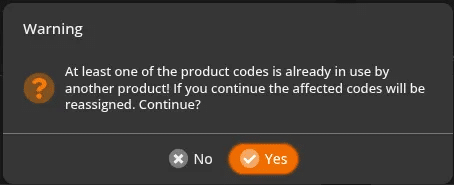
The system will issue a pop up every time you’re attempting to re-use a product code. This pop up replaces having to manually remove the existing product code from a product.
- Selecting Yes will assign the product code to the current product and remove it from the existing product.
- Selecting No will allow you to choose a different code for this product.